
This article walks through exporting and importing configured views of the Oden Now Factory page.
Topics
Quick Start: Upload a Sample Configuration
Importing and Exporting a Configuration
Configuring the Same View for Multiple Factories
Quick Start: Upload a Sample Configuration
- Download the sample configuration file
(Note: some web browsers will open this in a window instead of downloading. If this happens, just right right on that page and click "save as") - Navigate to platform.oden.app
- Find the view selection dropdown near the top right of the screen and select List (beta)

- Click the
 just above the dropdown
 - Click the
 button in the newly visible menu
- Find the configuration file in your downloads folder and click open
- Click
 to save this view or
  to revert
How Configurations are Stored
Configured views for the Oden Now Factory page are currently stored in your local web browser storage on a factory by factory basis. This has a few implications:
- Views you have configured on your computer will not automatically be updated for other users in your organization. Instead, you will have to share a configuration with them to generate a consistent view. See the next section for more info on sharing configurations.
- Views you have configured on your computer will also not be available from other computers even from the same login account. You can follow the same instructions in the next section to replicate across multiple computers.
- A view you have configured for one factory will not automatically be replicated for other factories. You have the flexibility to create distinct views for each factory, or see the Configuring the Same View for Multiple Factories section to more easily replicate views.
There are plans to incorporate more centralized management of views in the future, but this mechanism of storage should provide the necessary flexibility to create the most relevant views in different locations.
Importing and Exporting a Configuration
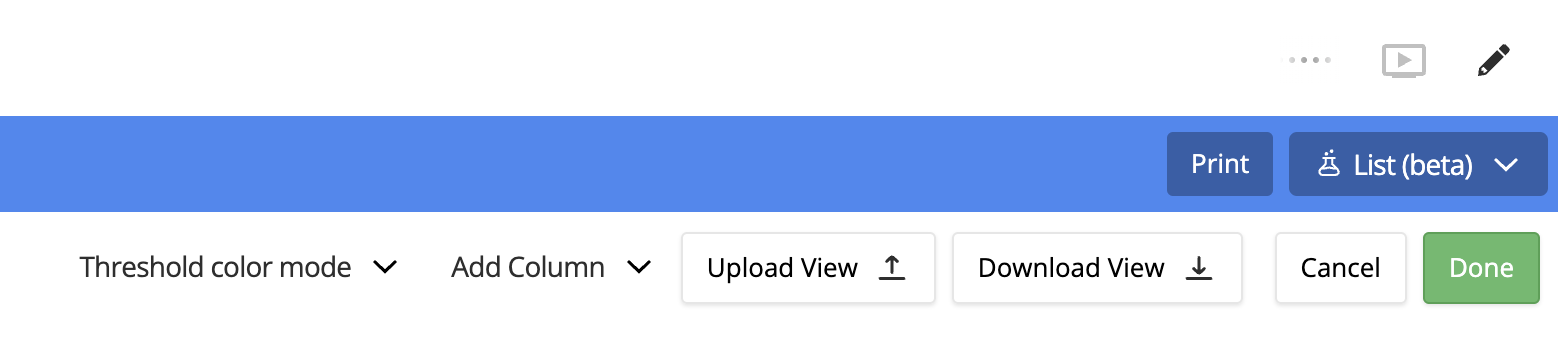
In order to more easily share views across your organization, there is a feature available to easily export and import configurations. After creating a configuration you would like to share, click the pencil icon in the top right corner of the screen to enter edit mode, and click the Download View button. (Note: If you made any changes to the configuration after opening edit mode, don't forget to click Done before leaving the page to save the configuration on your machine.)
You should now see a file in your downloads folder, or wherever your computer stores internet downloads, that looks like the one below. The file will start with the name of the factory you were viewing when you downloaded, and will end with a timestamp of when it was downloaded for easier management.

Feel free to change the name of this file for organization or sharing, just make sure not to change the file type from .json or to alter the contents of the file itself.
This file can now be shared with any other user in your organization for them to recreate the same views. Upon receipt, just navigate to the desired factory, open the edit panel, and click Upload View then select the appropriate file. Make sure to click the green Done button when you are finished to save the view.
Configuring the Same View for Multiple Factories
If your organization has multiple factories available in Oden, you have the flexibility to create unique configurations for each factory, or to use the same configuration file to generate the same view for multiple factories. As long as the factories have the same metrics available, any live metric or metric summary columns will be recreated as expected.
When you download the initial configuration file, it will be titled based on the factory you were viewing when it was downloaded. This will have no impact on the actual import of the configuration, but you may want to change the file name for clarity, especially if sharing.
To use the same configuration as a template for multiple factories, you will still have to upload the config for each relevant factory. Just open the Oden Now view for the relevant factory, and follow the instructions in the previous Importing and Exporting a Configuration section.