
Process AI provides operators with achievable process setting recommendations so that you can save money, increase production or both!
Select Start below to get a walkthrough of Process AI's features and capabilities.
You can also follow the steps below to start your first Process AI run.
1. Select the Process AI tab.
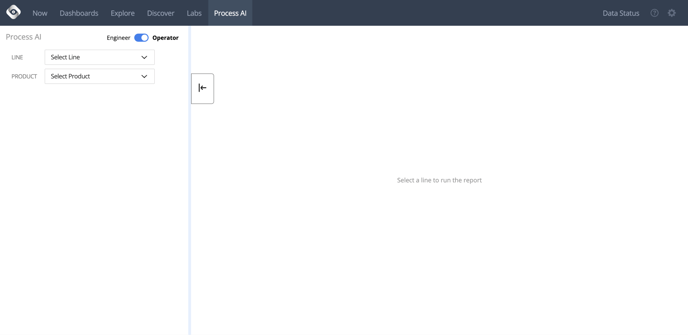
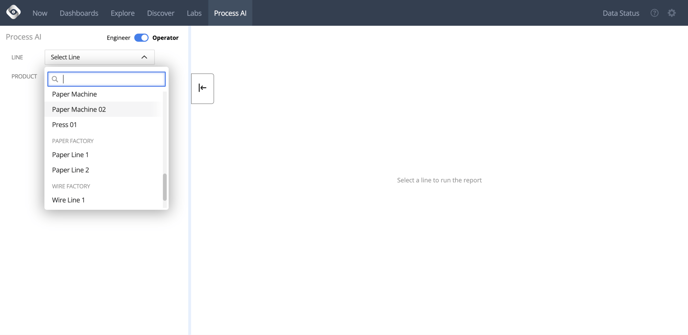
2. Select a line.
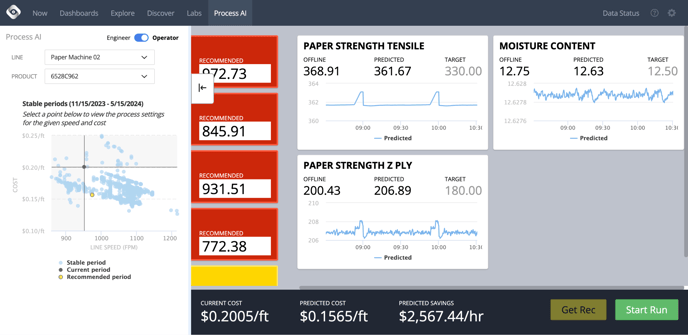
3. The product currently being produced on the line will automatically populate. You will see four sections appear:
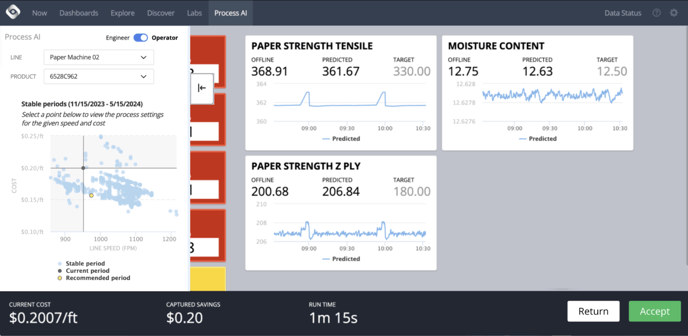
- Historical stable periods on a scatter plot. These are historical runs where 1) process conditions have met set constraints, 2) we have reached adequate quality and 3) tests are in spec.
- Current and recommended settings to reach the selected stable period. Tiles are color-coded to indicate the distance between the current and recommended settings. This deviation is defined for each metric.
- Current, predicted, and target values for quality metrics. Oden is predicting these quality metrics using AI models to ensure we have a continuous stream of quality information, rather than waiting for periodic offline test results.
- The projected Machine Speed increase displays the estimated impact of the process setting recommendations.

4. Select Start Run.
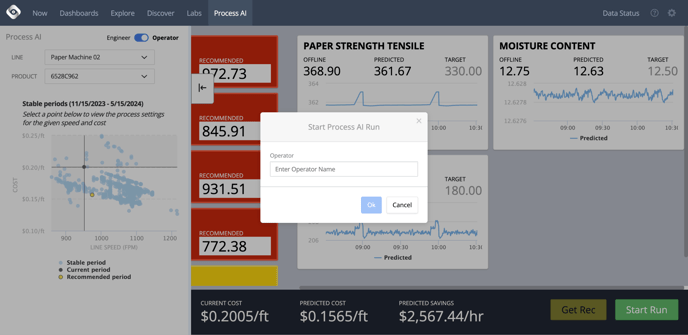
5. Enter your name so Process AI can track how much Value is captured with the changes over the course of the Run. Then select Ok.
6. Make the recommended changes to the process settings.
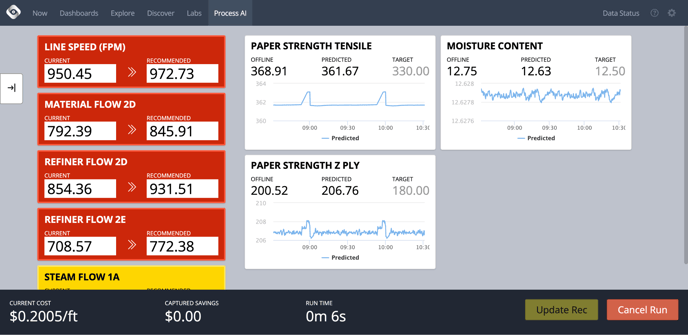
7. Make the recommended changes to the process settings.
8. Monitor quality metrics to ensure the product remains in spec.
9. Once new recommendations are available, you can select Update Rec to see the new recommendations.
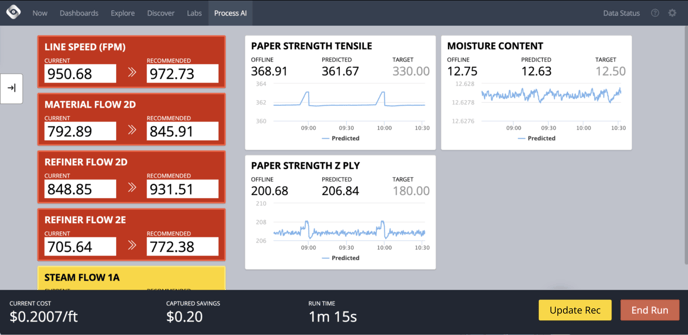
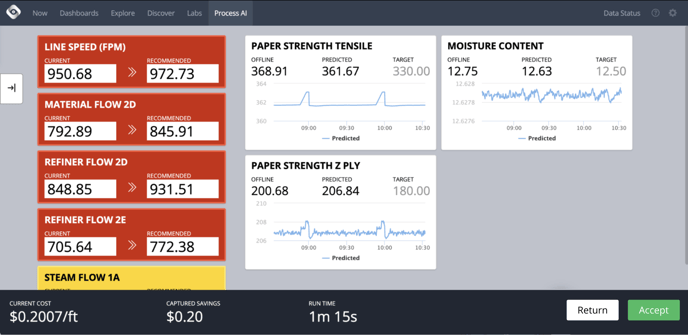
10. You can choose to Return to previous recommendations or Accept new recommendations.
11. You can also select any dot in the Stable Periods chart to explore other recommendations.
12. To end a Process AI run, select End Run.
When should you end a Process AI run?
a. If the Line enters a Changeover event.
b. If the Line enters a downtime period that prevents stable production.
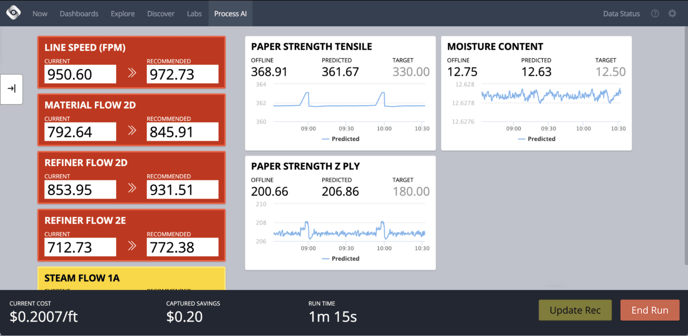
13. Once the Process AI run ends, you will be able to see the total Captured Value.

If you have any questions, please contact your CSM or support@oden.io.